


With the continuous iteration of the ZSvirt virtualization platform and the expansion of the user base, how to improve user operation efficiency while keeping the interface simple has become a key challenge faced by the R&D team.
As an efficient way of interaction, shortcut keys have been widely used in various software. They not only reduce reliance on mouse-driven operations but also lower users’ cognitive load, allowing users to focus more effectively on their primary tasks.
Based on this, the ZSvirt virtualization platform launched the shortcut key function. This article provides an in-depth look at the design principles, technical implementation, and future roadmap of the ZSvirt shortcut key system.
Why do we need shortcut keys?
In virtualization products, users often face the following problems:
Long operation path
Complex navigation paths can increase operational overhead, requiring users to spend additional time locating frequently used functions and resources.
Low operating efficiency
Frequent switching between input methods can interrupt workflows and reduce productivity, especially when users perform repetitive administrative tasks.
Inconsistent workflow
Frequent page switching during complex operational workflows can impact efficiency and create unnecessary friction for administrators.
The shortcut key system is designed to provide a more efficient and intuitive interaction experience, enabling users to complete common administrative operations with fewer steps.

Which functions can be set with shortcut keys?
When determining which functions should support shortcut keys, we evaluated potential scenarios based on the following considerations:
High frequency usage scenarios
Shortcut keys are prioritized for frequently accessed functions, including global search, task and alarm windows, and other commonly used operational scenarios.
Core functional scenarios
Set shortcut keys for core function modules such as resources and operation and maintenance. For example:
-
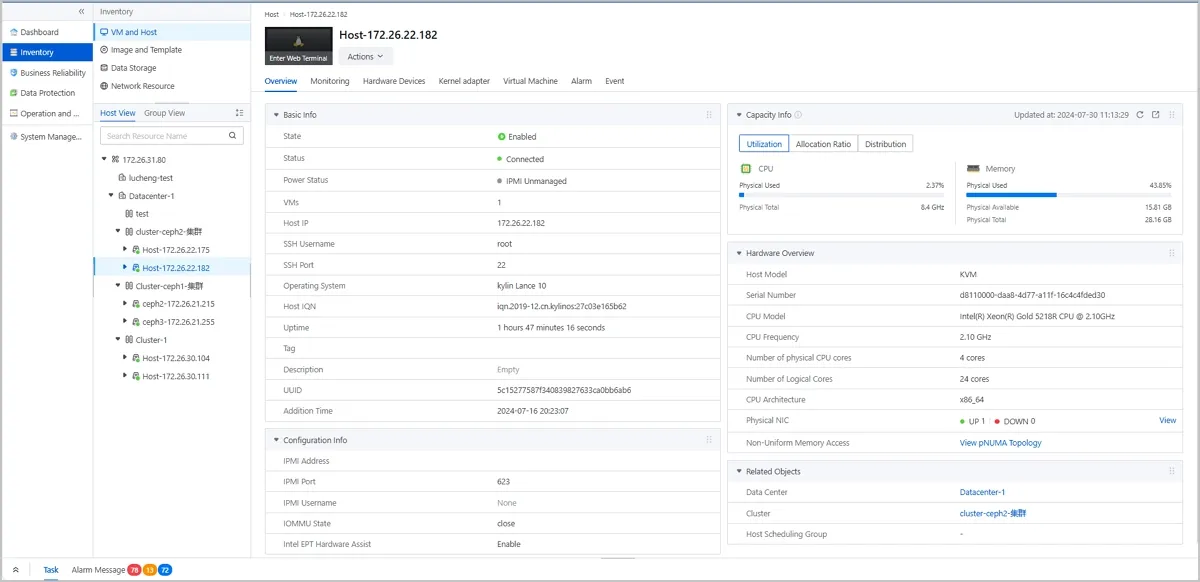
Quickly expand/collapse the resource tree on the resource list page.
-
Directly jump to the alarm function module from any page to view messages.
-
The shortcut key design also follows interaction patterns commonly used in mainstream virtualization products, such as VMware, helping reduce user adaptation and learning effort during platform transition.
How do I assign shortcut keys?
After identifying suitable functions, shortcut keys are assigned according to the following design principles:
- Standard Specifications
The system follows commonly adopted shortcut key conventions to reduce the learning curve. For example, the Esc key is used to exit or close active functions.
- Mainstream commonality
The design incorporates familiar shortcut patterns from widely used applications to minimise cognitive effort. For example, Ctrl+K (⌘+K) is used to open the global search interface.
- Functional semantics
Shortcut assignments are also based on intuitive functional associations, allowing users to easily remember commands based on their purpose.
In addition, we also focused on and solved the following technical issues:
Shortcut key conflicts
As a browser-based application using a B/S architecture, ZSvirt must carefully manage shortcut assignments to avoid conflicts with existing browser-level shortcuts.
Operating system differences
To support different operating systems, ZSvirt adopts Ctrl for Windows environments and Command for macOS environments, ensuring a consistent user experience across platforms.
Development and Implementation
From an implementation perspective, the shortcut key system consists of several core components within the ZSvirt frontend architecture:
Shortcut key listener
The shortcut key listener leverages browser-provided event interfaces to capture keyboard inputs, filter relevant events, and route them to the appropriate processing logic.
Component command registration
UI component functions are registered as executable commands, enabling the shortcut listener to trigger corresponding actions through a unified command mechanism.
Shortcut key configuration
The shortcut configuration module maintains the mapping relationship between shortcut combinations and registered component commands, allowing centralized management and future expansion.
During the initialization phase, the system performs the following steps:
-
Initializes the shortcut key listener
-
Loads shortcut key configuration data
-
Registers UI component commands associated with shortcut actions
When a user triggers a shortcut key, the event handling workflow follows these steps:
-
The keyboard event is captured by the shortcut listener
-
The system determines whether the current input context allows shortcut execution
-
The corresponding key combination is identified through the shortcut configuration
-
The associated command is located and executed
Execution Example (Using Ctrl+. to switch the bottom panel as an example):
-
The user presses Ctrl+.
-
The browser captures the keyboard event
-
The event is forwarded to the shortcut listener
-
The system parses the shortcut combination and identifies the corresponding command from the shortcut configuration
-
The command is executed to change the bottom panel state
-
The user interface updates accordingly
Through this architectural approach, ZSvirt achieves separation of concerns, improved scalability, unified event monitoring and processing, flexible command execution, and centralized shortcut configuration management.
While meeting current functional requirements, this architecture also provides a scalable foundation for future shortcut key enhancements and continuous product evolution.
ZSvirt shortcut functions at a glance
The following shortcut functions are currently available in the ZSvirt platform:
Resource list shortcut keys
Shift+14 (⇧+14): Quickly switch between resource modules such as hosts and virtual machines, images and templates.
Ctrl+/ (⌘+/): Quickly expand/collapse the resource tree.
Task and Alarm Window Shortcuts
Ctrl+. (⌘+.): Quickly open the task and alarm window to view task progress and alarm information.
Global search shortcuts
Ctrl+K (⌘+K): Quickly open the global search interface.
The search interface supports keyboard-based operations, including switching search categories, navigating options, selecting results, and exiting the search workflow. Users can complete the entire search process without relying on a mouse.
Quick access function menu
Additional shortcut keys will be introduced to provide faster access to commonly used function menus, including alarm information, the home page, and other frequently accessed areas.
User guidance and future planning
To help users quickly adopt the shortcut key functionality, ZSvirt provides the following user guidance resources:
Shortcut Key Comparison Table
A complete shortcut key reference table is provided within the interface, allowing users to quickly review available shortcut combinations.
Tooltips
Shortcut key hints are displayed within relevant function buttons to improve feature discoverability and user awareness.
In future releases, ZSvirt will continue enhancing shortcut capabilities by extending support to additional operations, including Recycle Bin management and resource/object editing workflows, further improving administrator productivity.
Conclusion
The introduction of shortcut key functionality represents an important step in ZSvirt’s ongoing effort to enhance user experience and operational efficiency.
From initial design through technical implementation, the feature development process focuses on user requirements while incorporating engineering best practices to deliver an efficient and intuitive interaction experience.
Moving forward, ZSvirt will continue improving shortcut key capabilities while enhancing overall virtualization platform performance to provide administrators with a more efficient and streamlined operational experience.