
CentOS virtual machine cannot boot and displays a black screen for an extended period
Symptom
A CentOS virtual machine cannot boot and displays a black screen for an extended period.
Cause
The file libselinux.so.1 was accidentally deleted.
Solution
-
On the details page of the affected virtual machine, click Modify Configuration > CD-ROM to open the CD-ROM interface. Click Image File > Load ISO to attach a CentOS ISO file to the virtual machine.
-
Click Advanced Settings > Boot Options > Boot Order to open the boot order settings, then set the virtual machine to boot from the CD-ROM.
-
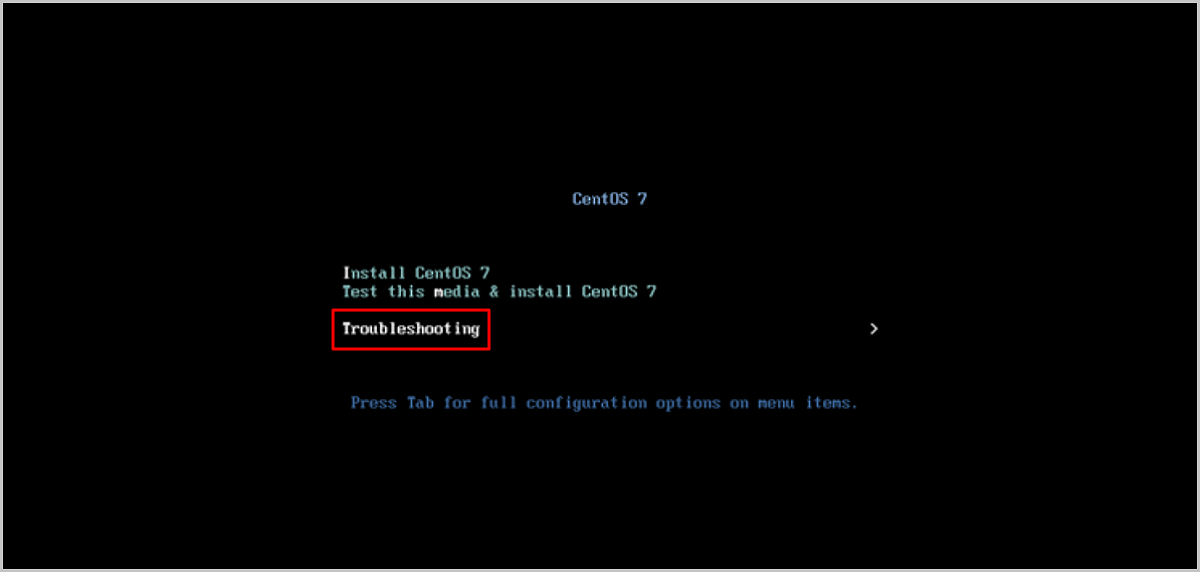
On the installation page, select Troubleshooting.
As shown in Figure 1:
-
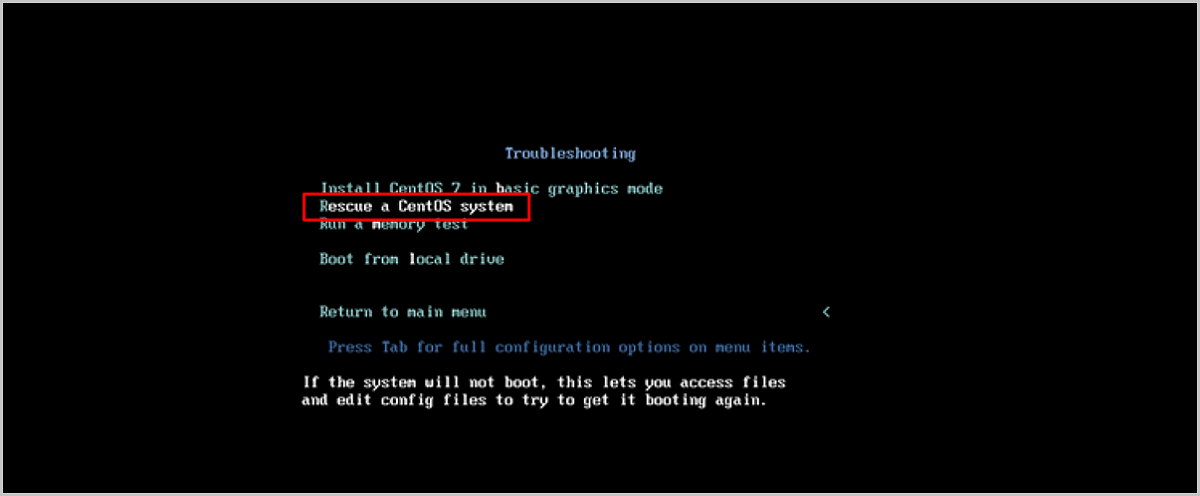
Select Rescue a CentOS system to enter rescue mode.
As shown in Figure 2:
-
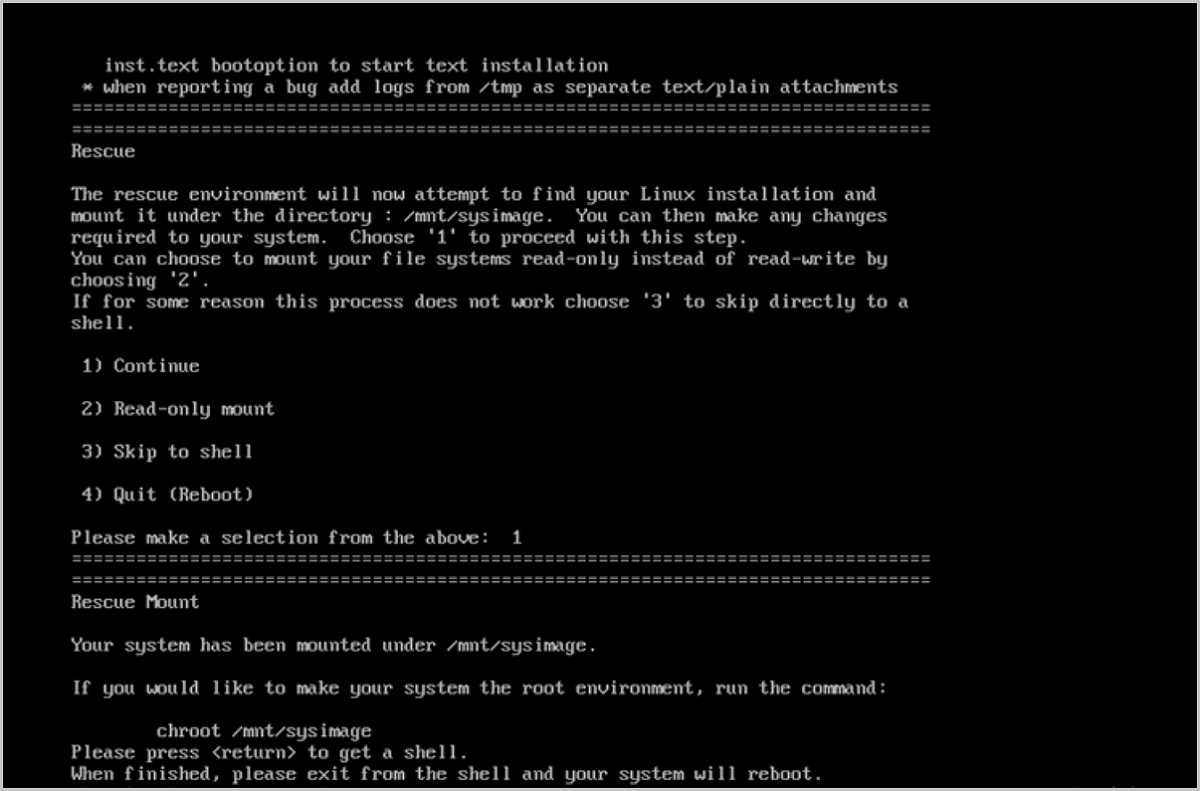
In the rescue mode interface, enter
1to mount the system root filesystem to/mnt/sysimagein read-write mode. To switch/mnt/sysimageto the root directory, run thechroot /mnt/sysimagecommand.As shown in Figure 3:
In rescue mode, any operation triggers the following error:
ls : error while loading shared libraries: libselinux.so.1: cannot open shared object file: No such file or directory -
Run the
chroot /mnt/sysimagecommand to mount the system. -
Run
cp /lib64/libc.so.6 /mnt/sysimage/lib64to copy the libc.so.6 file to the system directory. -
Restart the virtual machine. The system boots normally.